6. Now with the file open, we will need to scroll to the bottom of the file.
# CUPS printing.
[printers]
comment = All Printers
browseable = no
path = /var/spool/samba
printable = yes
guest ok = yes
read only = yes
create mask = 0700

# Windows clients look for this share name as a source of downloadable
# printer drivers
[print$]
comment = Printer Drivers
path = /var/lib/samba/printers
browseable = yes
read only = no
guest ok = no
7. We can now restart SAMBA to get it to load in our new configuration.
sudo systemctl restart smbd
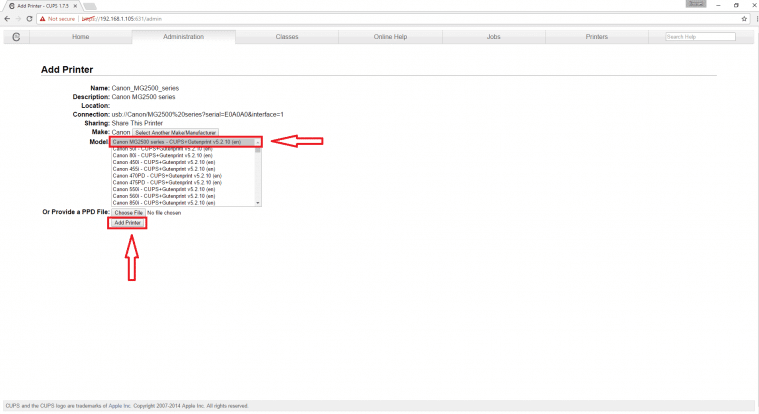
8. Adding a printer to CUPS
GOTO: https://x.x.x.x:631

On here we need to click “Administration” in the navigation menu at the top of the screen.
On here, we need to click on the “Add Printer” button.

Then set printer Model