LM Studio
- Download and Install LM Studio (https://lmstudio.ai)
- Start LM Studio, then go to Discover
- Search and download “DeepSeek R1 Distill (Llama 8B)”
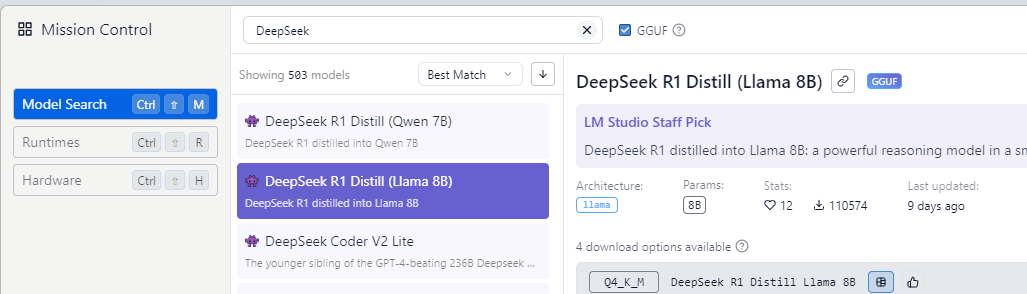
- Try to load the downloaded model and test with Chat (in LM Studio)
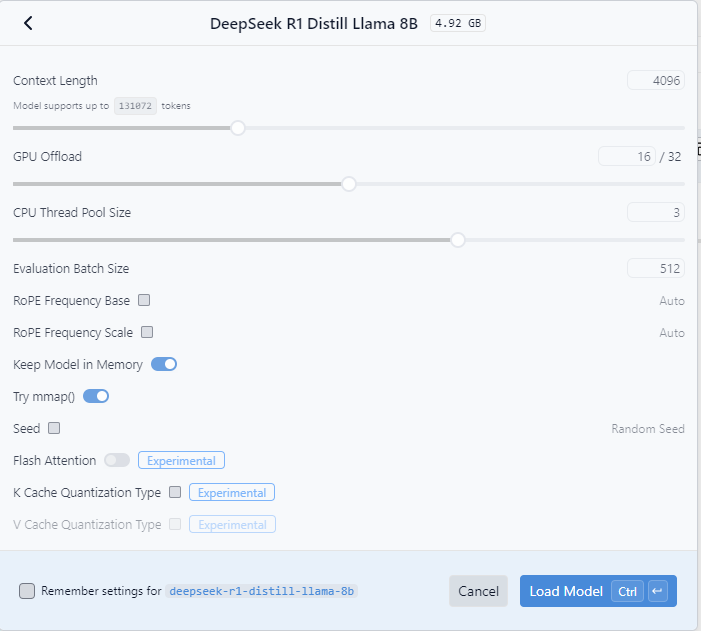
LM Studio Developer
- In LM Studio, go to Developer tab.
- Select the download model to load
- Then click Start (click on toggle)
- Check the logs to ensure the server is running

VS Code
- Start VS Code
- Install “Continue – Codestral, Claude, and more” (from continue.dev)

- Open “Continue” extension from the left menu
- Click the settings icon to open “Continue config” (in JSON format)
- Update config as below
{
  "models": [
    {
      "model": "deepseek-r1-distill-llama-8b",
      "provider": "lmstudio",
      "apiKey": "EMPTY",
      "title": "DeepSeek R1 8B"
    }
  ],
  "tabAutocompleteModel": {
    "title": "DeepSeek R1 8B",
    "provider": "lmstudio",
    "model": "deepseek-r1-distill-llama-8b",
    "apiKey": "EMPTY"
  },
  ...
}
- Ask a question to verify connection to LM Studio Server
